How to make a family tree without writing a story
PeoplePlotr started as the family tree you make by writing a story. You still can, but now you don't have to. You can build the whole tree by clicking: a + to add a mum, a son or a wife, a form for their dates, and a picture editor for their looks. PeoplePlotr writes the story for you as you go, in plain sentences, so you can read it, share it or carry on in words whenever you like. This guide builds a small family that way, start to finish, without typing a single sentence.
Step 1: Add the first person
Open the editor with an empty story and the tree says Your family tree will grow here, with a big + under it. Click it and type a first name. That's enough to start, but More details opens a few more boxes: surname, sex, when and where they were born, and whether they've died. If the tree is about your own family, start with yourself and tick This is me, so everyone else gets the right label, like Mum, Grandad or Cousin.
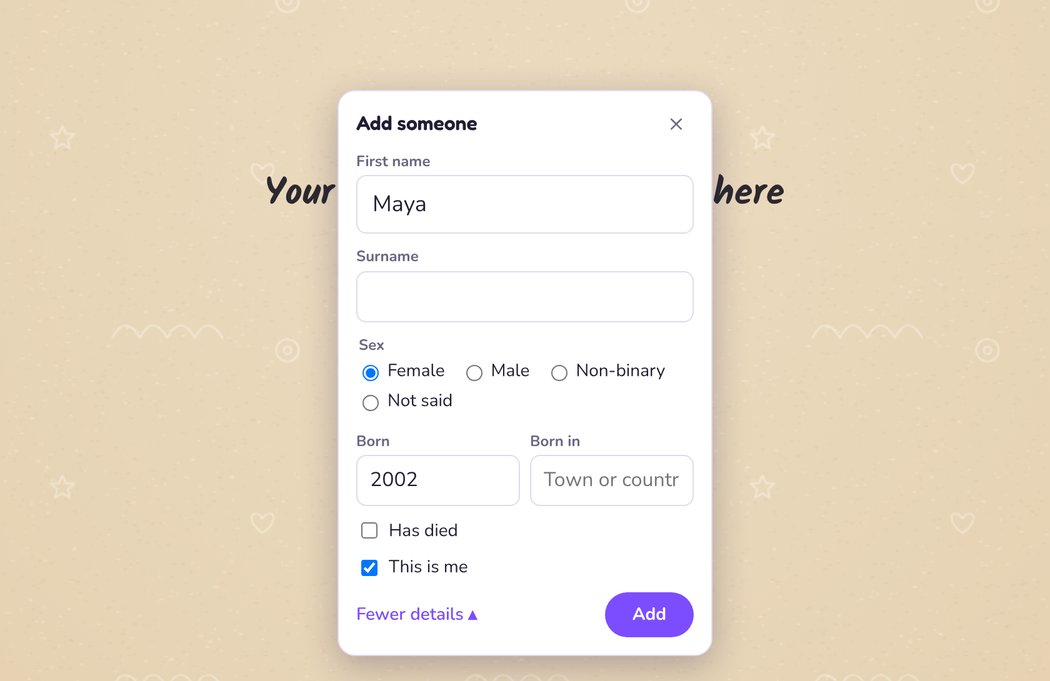
Press Add, or Enter, and Maya appears on the tree.
Step 2: Add their family with the + buttons
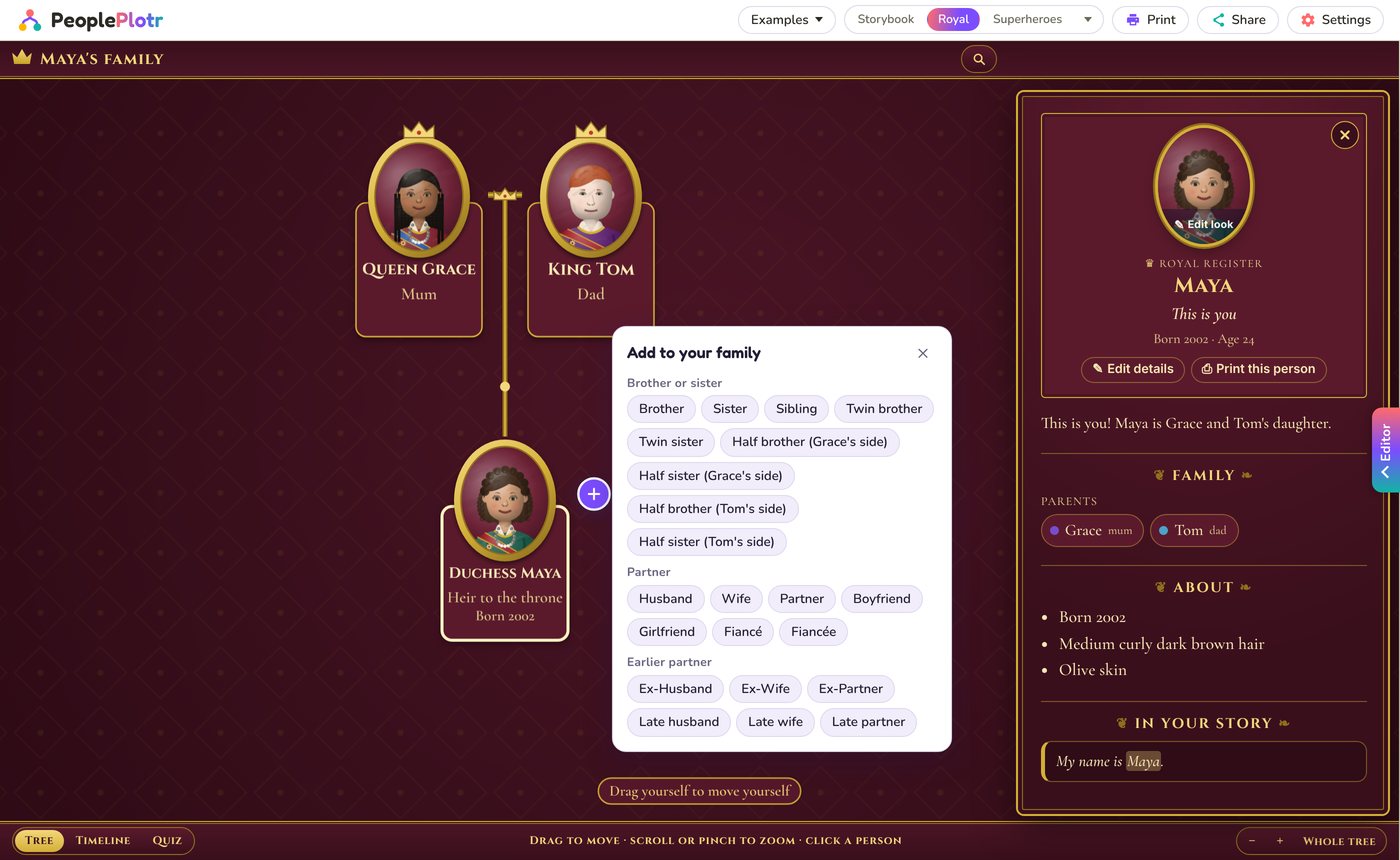
Click anyone on the tree and a + appears on each side of their card. Where the + is tells you what it adds:
- The + above adds a parent: mum, dad or parent, or a step, foster or adoptive parent.
- The + below adds a child: son, daughter or child, or a step, foster or adopted child.
- The + on either side adds a brother or sister (including twins and half brothers and sisters), a partner (husband, wife, partner, boyfriend, girlfriend, fiancé or fiancée), or an earlier partner (an ex, or a late husband or wife).
Choose one, type their name and press Add. The person you started from stays picked, so you can go round adding Mum, then Dad, then a brother, without clicking them again. The new person glows for a moment so you can see where they went, and if they land off screen, the tree slides to show them.
Then click someone else to grow their side. Here, Maya added her mum Grace, her dad Tom and her brother Sam. Then she clicked Grace and used the + above her to add Grandma Rose and Grandad Arthur.
Step 3: Give everyone a face
Click someone and press Edit look (or click their picture). You get a picture editor with tabs for Hair, Face, Skin, Extras such as glasses and headgear, Clothes, Age and Personality. Pick from the pictures and you see their portrait change as you go. Surprise me picks a look for you if you're stuck.
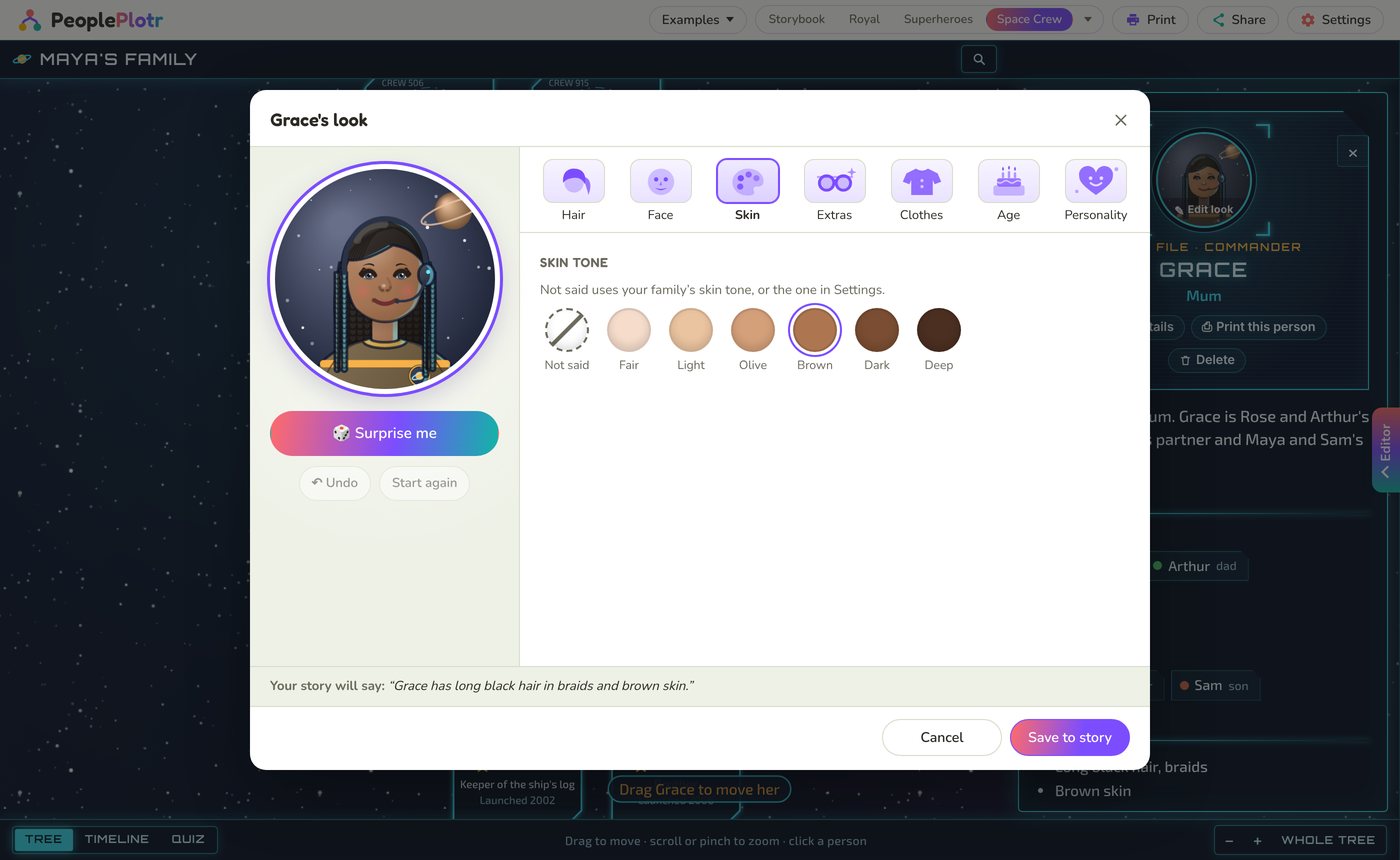
Along the bottom, Your story will say shows the sentence it will write. Press Save to story and it's done.
Step 4: Fill in their details
Click someone and press Edit details for everything else about them, in tabs:
| Tab | What it holds |
|---|---|
| Details | Their name, middle names, nickname, title and maiden name; sex and pronouns; when and where they were born and died; their job and where they live |
| Relationships | Their parents, partners and children. Change a couple from engaged to married, divorced or separated, add the wedding date, mark twins, or take a link away |
| Hobbies | Pick from nearly 40 hobbies, from football to birdwatching, or type your own |
| Personality | Words like cheerful, shy or kind, which also show on their face |
| Pets | Their pets, with a badge for each |
| Style | A colour for their card, a bigger or smaller size, or making them the star |
| Story | A few paragraphs about their life, shown on their card |
| Sources | Where you found it, such as a certificate or a census, and notes for yourself |
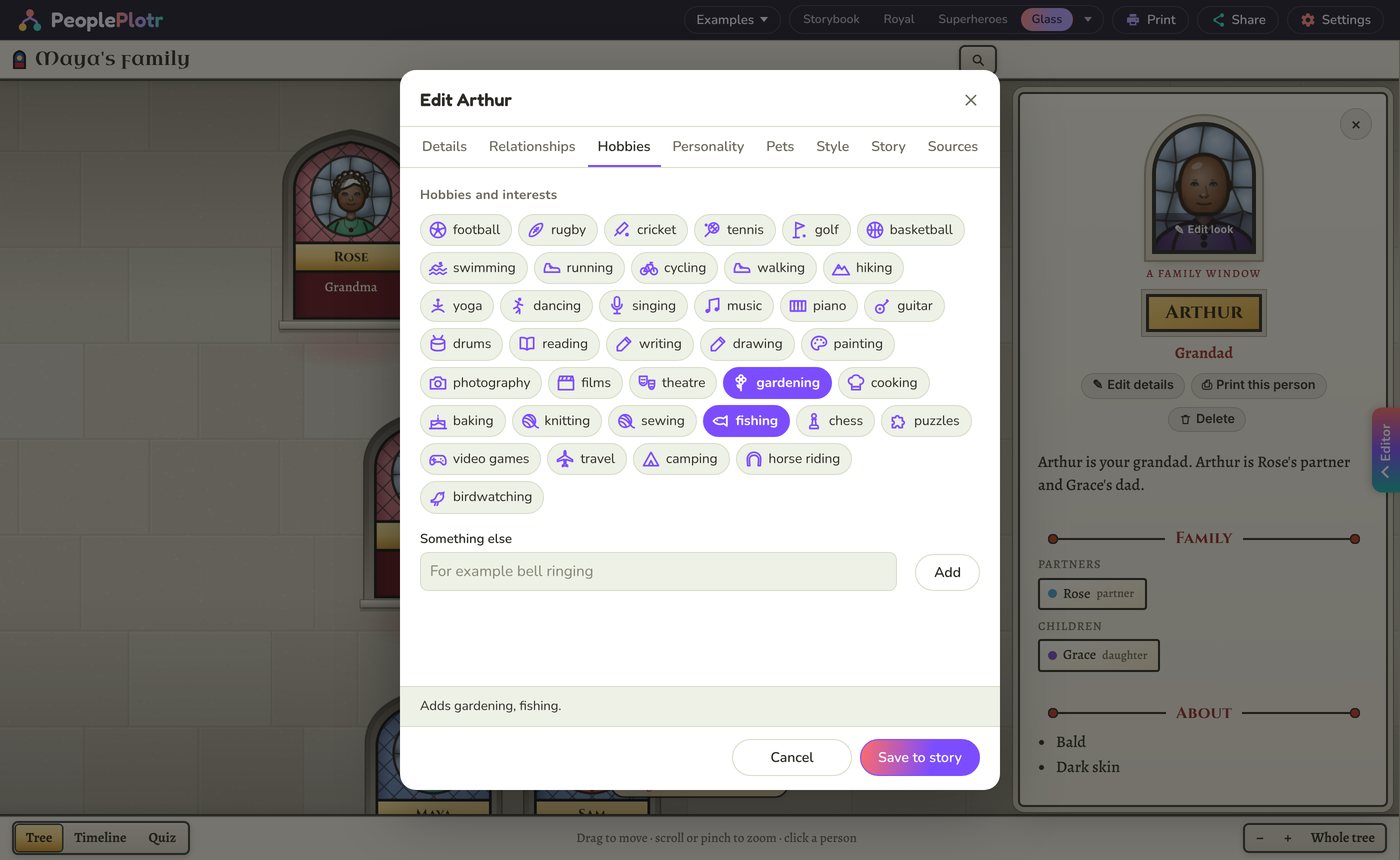
Press Save to story when you're done. If something you've changed clashes with what's already there, PeoplePlotr offers to change the sentences in the way, so the tree and the story always agree.
Step 5: Move people, or take them out
- Drag someone to move them. Hold them above a card to make them that person's parent, below it for a child, to one side for a brother or sister, or on top for a partner. A label tells you what letting go will do. Our drag and drop post has more.
- Drag a brother or sister to the other side of another to change their order.
- Delete, on someone's card, takes them out of the tree. Everyone else stays as they were.
- Undo appears after every change, so nothing is ever a risk.
Your story writes itself
Every click above wrote a plain sentence into the story. Here's the one Maya's family made, word for word, without her typing any of it:
My name is Maya. I am female. I was born in 2002.
Grace is my mum.
Tom is my dad.
Sam is my brother. Sam was born in 2006.
Rose is Grace's mum.
Arthur is Grace's dad.
I have shoulder-length curly dark brown hair and olive skin.
Grace has long black hair in braids and brown skin.
Tom has short red hair and fair skin.
Sam has short curly black hair and olive skin.
Rose has short curly white hair and dark skin.
Arthur has dark skin. He is bald. Arthur likes gardening and fishing.
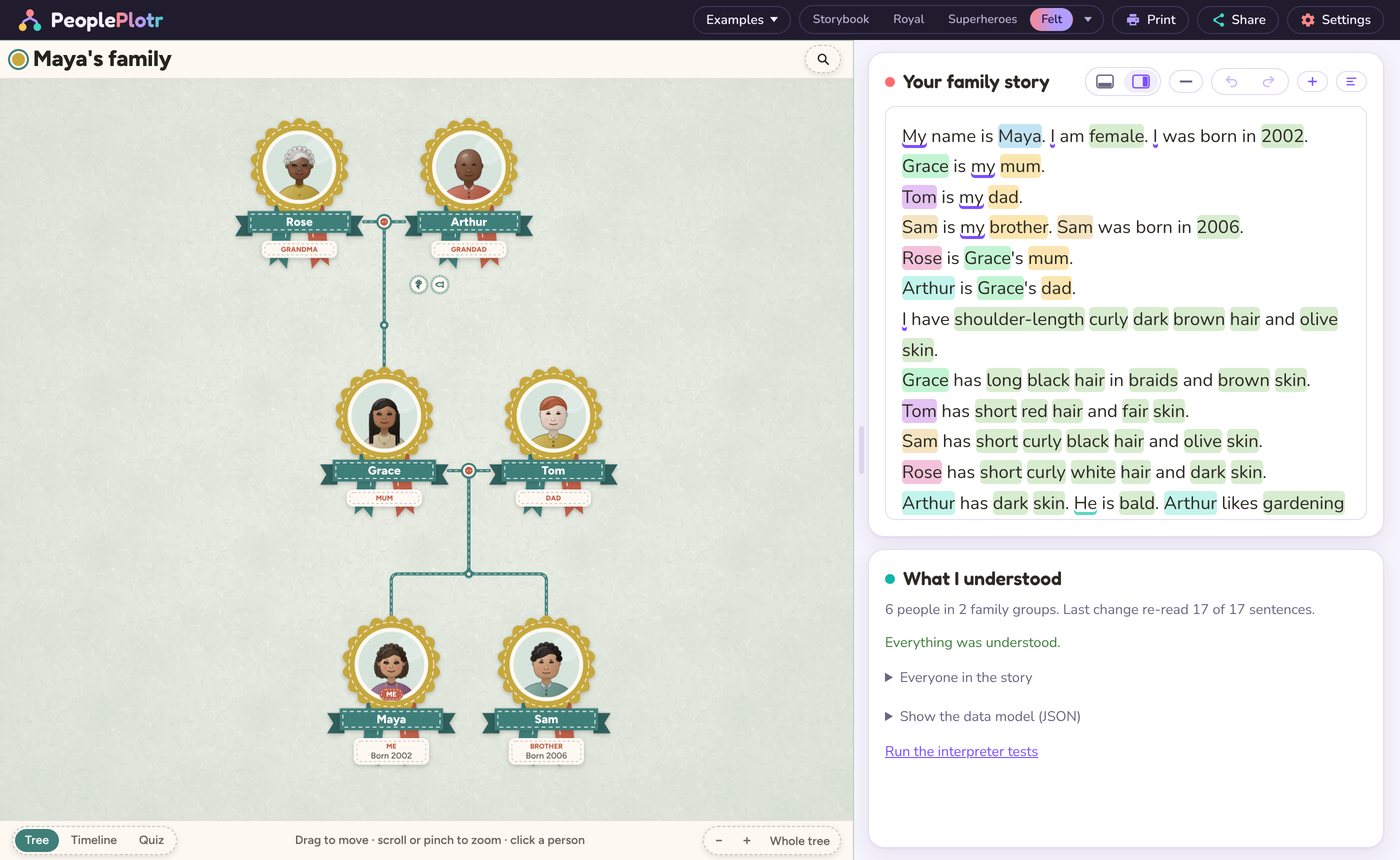
You never have to look at it. The minus button at the top of the story box, Hide your story, tucks it away so the tree has the whole screen, and the Editor button brings it back. But it's there whenever you want it, and you can mix and match. Many people click to add the family, then type the bits that are quicker in words, like Arthur was a bus driver in Leeds.
Then make it look the way you want
Everything else works the same, however you built the tree. Click the designs in the top bar to try a different look, from Storybook to Royal or Space Crew. Share gives you a link for the family, and Print prints it at home or orders a framed print.
Quick answers
Do I need to write anything at all?
No. You can add everyone, their dates, looks, hobbies, pets and life stories by clicking. PeoplePlotr writes the sentences for you.
Is clicking free?
Yes. The + buttons, Edit details, Edit look, drag and drop and Delete work on every account, free ones included.
Can I switch between clicking and writing?
Any time. The story is what's saved, whichever way you made it, so you can type a sentence, click a +, and type again. If you'd like to try writing, our post on ways to write your family story shows how.
What if I make a mistake?
Press Undo, which appears after every change, or use the undo arrow at the top of the story box. To fix someone's details later, click them and press Edit details.
Can I bring in a tree from Ancestry?
Yes. Import a GEDCOM file from Ancestry or another family history site and PeoplePlotr turns it into a story and a tree, which you can then carry on by clicking.